


Login Page
The login page in Avendoo is the central entry point where users log in with their credentials and gain access to the Avendoo learning environment.
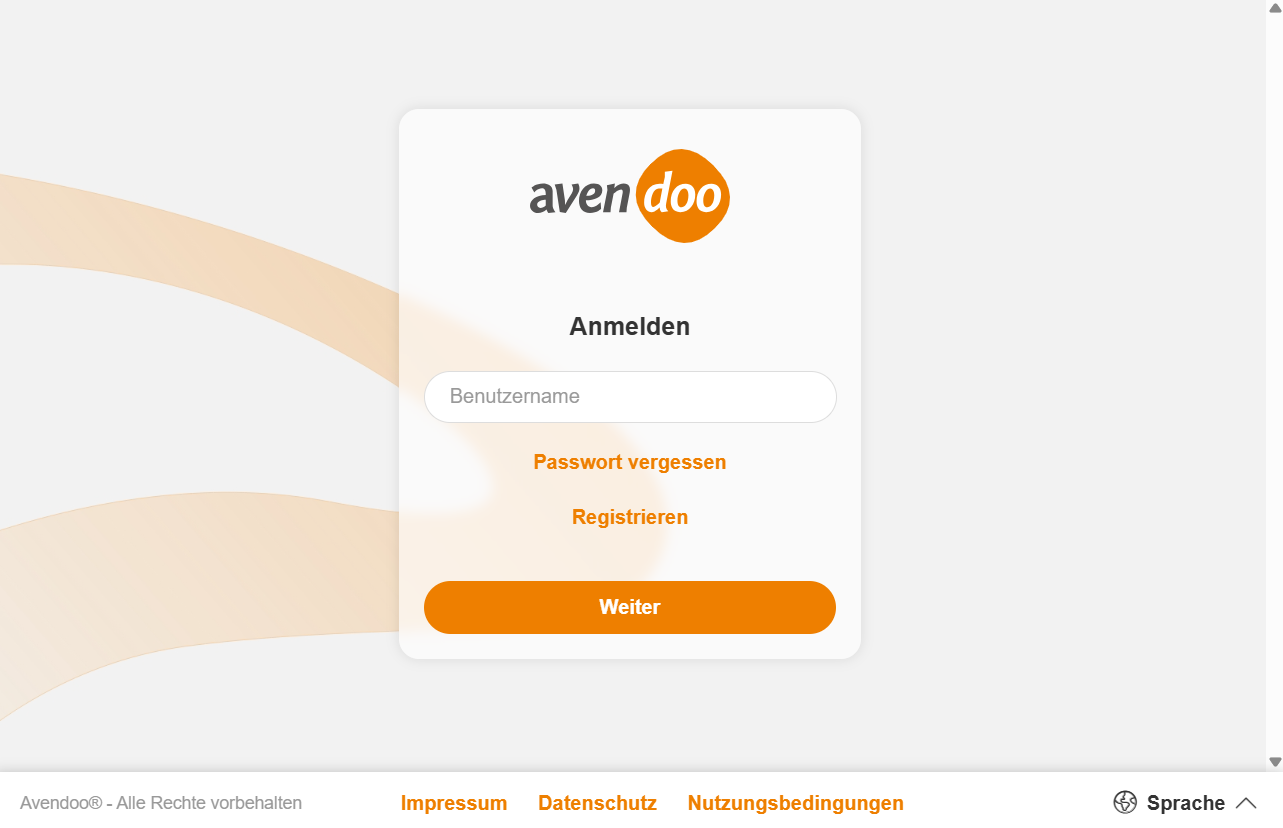
Important areas
Log In
Enter your username and password to log in to Avendoo.
If two-factor authentication is enabled, you will also be prompted to enter a 6-digit code.
After multiple failed attempts, the login process will be locked for a certain period of time.
Forgot Password
If you have forgotten your password, you can reset it using the Forgot Password function. To do this, enter your username and then click the Request New Password button. A message with further instructions will be sent to the email address stored in the user account.
For security reasons, Avendoo does not provide any indication of incorrectly entered or non-existent usernames.
Tip: If the user does not have an email address, alternative options can be configured using the system setting forgot.password.config.
Register
In Avendoo, users can self-register if needed. With registration in Avendoo, visitors to the login page can independently create a user account for the learning environment.
A prerequisite for self-registration is a verification code that must be known to the visitor.
Additional Options
Single Sign-On (SSO)
With Single Sign-On (SSO), users can log in to Avendoo automatically—without entering a username or password.
Language selection
Users have the option on the Avendoo login page to adjust the interface language using a language selector.
The selection of interface languages depends on which language packs are enabled for your learning environment. Additionally, the administrator must have configured the languages accordingly in the system setting system.languages.available.
Language Parameter
To display the Avendoo login page directly in a specific language, you can add the URL parameter siteLanguage with the desired language code (e.g., ‘de’ for German, ‘en’ for English) to the URL.
Example for accessing the login page in French:
https://academy.avendoo.de/ui/login?siteLanguage=fr
Avendoo uses the ISO 639-1 language codes.