


Notifications for events
Notifications help you control manual or automated communication with learners, speakers, and coordinators regarding an event. Learn here how the Notifications tab in the Event wizard is structured and how you can work with notifications in terms of events.
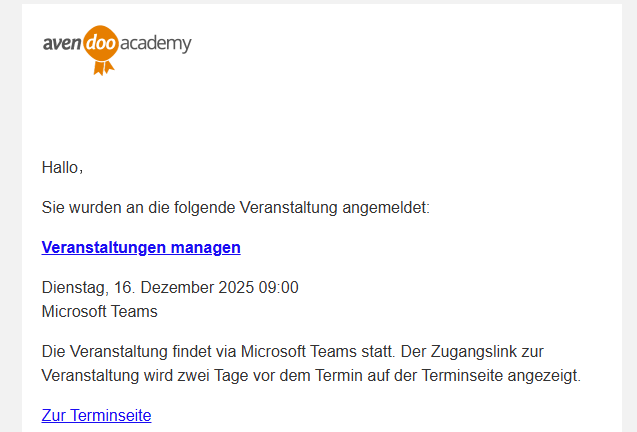
Working with notifications
You can make settings in the Event wizard for each notification concerning this event. The setting options for notifications are described in the following four tabs—click a tab to learn more.
Trigger / Time
Use client settings
Individual notification
Activate updates or recipients
Often, you have the option to define a trigger for the notification (e.g., X days before the Event date start, upon registration, etc.) or to suppress the sending of this notification for this event.
When a notification is sent, you can choose whether the client settings should apply. This means that the trigger and notification text have already been defined on the client. By activating this option, you are using the system-wide settings.
If you want to send your own notification text for this event, you have the option to link an individual notification. By clicking Select, you can select or create an individual notification.
For some notifications, you can use a checkmark to decide whether a notification should be sent when a change occurs. For other notifications, you have the option to define additional recipients.
Important notifications
Here we explain the most frequently used notifications for you.
Registration confirmation
A registration confirmation can be sent upon registration. If the email invitation has been activated and already sent, no additional registration confirmation will be sent.
Email invitation
You can set a dispatch time for the invitation email. It is helpful if the registration confirmation was a long time ago and/or if additional information is to be sent. You can have a preview sent to the speakers or coordinators here.
Reminder
The reminder serves to remind learners that there are still preparatory tasks to be completed. Preparatory tasks are understood to be previous objects on the learning path (e.g., Instructional material, hurdles, checkpoints).
Feedback
The Event – Feedback notification takes effect when an event is linked to feedback. It indicates that feedback should be completed for the event. The
More automatic notifications
If the offered notifications do not cover your use case, you can create additional automated notifications yourself. To do this, click on the
All notifications from Avendoo as well as their triggers and the stored standard text can be found in this list.
General information about notifications for events
The following information is important for you when working with events and notifications.
- Notifications to participants are only sent if the Event date status of the event Event date is active.
- Speakers and coordinators also receive notifications even if the Event date still has the status initiated, provided the notifications have been configured.
- In the event of changes, it makes sense to resend certain notifications to participants if they were originally activated and sent. The system recognizes this case automatically and asks whether the notifications should be reused. This is the case for the notifications Registration confirmation, Registration confirmation – waiting list and Email invitation
Prerequisites
- Author account with the permission Event: Change, create.
- Further permissions are required for editing the client settings and creating individual notifications.