


Event manager
Using the Event manager, you can manage participants for training sessions, communicate with participants, and record attendance. To access the Event manager, click on the event title in the backend under Event management → Overview of event date or by event date groups. You can also access the Event manager for a selected event via the calendar widget on the dashboard.
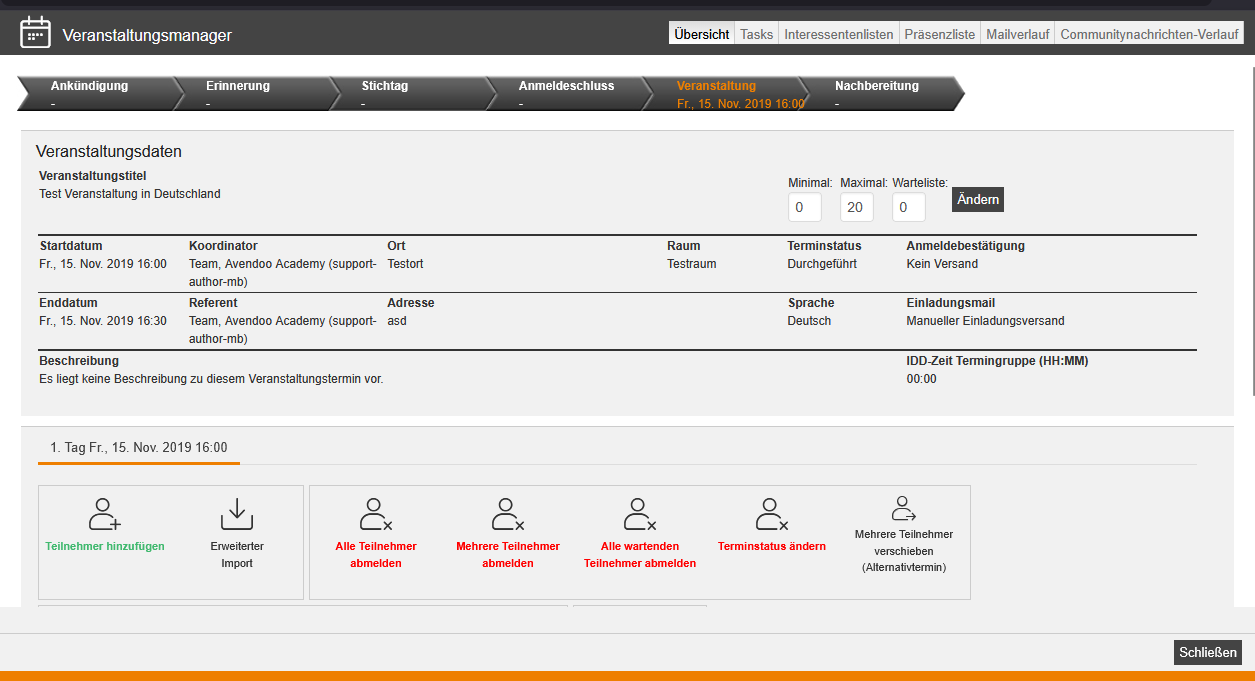
Important areas
Overview
The Event manager overview displays the key details of the event (start date, end date, coordinator, speaker, location, event date status, number of participants, and additional information).
Here you can also register participants, unregister them, search and edit the participant list, cancel the event date, and send notifications, among other actions.
Attendance list
On the Attendance list tab, you can record attendance, add comments to the attendance record, or access the attendance list as a PDF or Excel file. This is also where you close the event date once you have recorded all attendance.
The attendance list for an event date can only be completed once the start time has been reached. In event date groups, this applies to each event date individually.
E-mail history
The E-mail history tab provides insight into the notifications sent for the selected event. Here you can view notifications sent to participants, instructors, or coordinators after the fact.
If you make certain changes to the event date, such as a new location, Avendoo automatically sends an update email to the participants.
Other areas
Overview of tasks
Here you can see all existing tasks, listed by task name, teaser, owner, trigger, status, task due date, current notes and event.
To edit the task or mark it as closed, click on the task name.
Lists of interested parties
Using lists of interested parties (preliminary event dates), you can plan events without publishing them yet. The list of interested parties tab shows you the list(s) and the interested parties registered for them.
History of community messages
Here you can see an overview of the community messages for the event date. You can see when (date and time) the community messages were created, who the recipient was, and their content.
Prerequisites
- Author account with at least the permission “Access to the event manager”, ideally all permissions under event management.
- To work with an Event manager, an event with an event date must first be created and inserted into a course activation.