


Creating Terms of Use as a Campaign
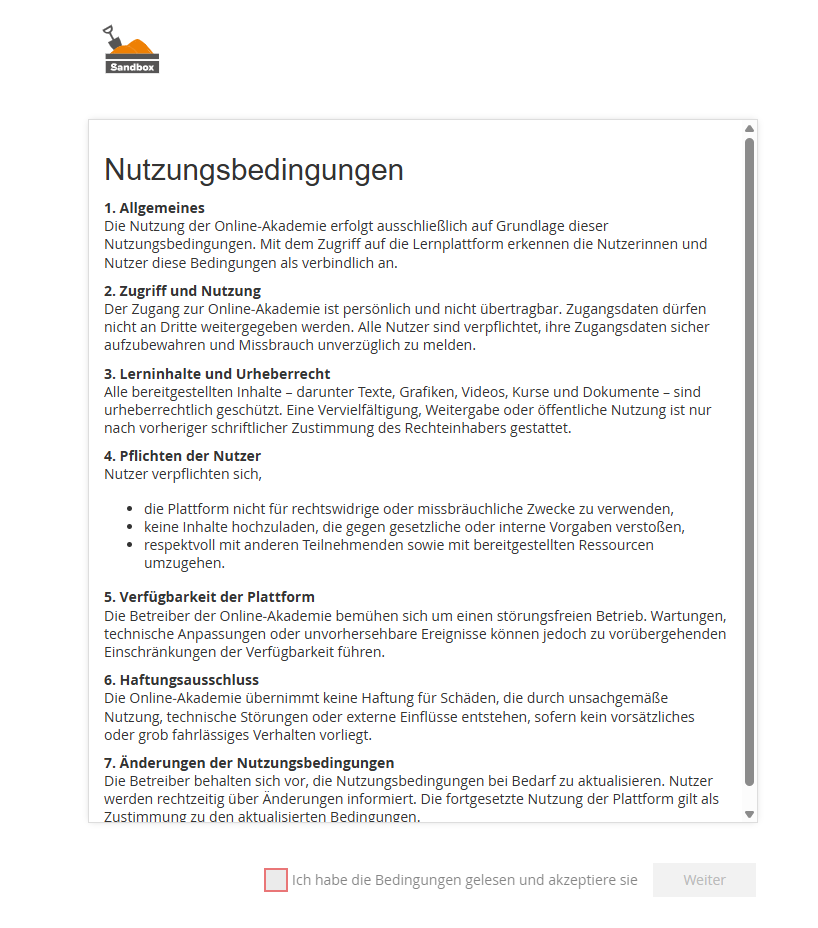
In Avendoo, terms of use can be centrally published using campaigns and displayed to users for confirmation immediately after login. Users only gain access to the learning environment after accepting this campaign. This article describes the individual steps for creating such a campaign.
1
As an author, go to Administration → Campaigns and Create a new campaign.
2
Enter a Title and select Terms of Use as the Campaign Type.
3
Under Assignment, specify which users the campaign will be displayed to. The display can be restricted to specific user groups based on specific criteria from user data (e.g., client, roles, organizational unit).
If no restrictions are defined, the campaign will be displayed to all users of the learning environment.
4
Switch to the Content tab and enter the desired text.
5
Save the Campaign.
7
In the campaign overview, you can test how the campaign will be displayed to users later by clicking the respective country flag in the Preview column.
Important
You cannot deactivate an active campaign. Additionally, the campaign type, assignment, and content can no longer be modified.
8
To publish the campaign for the relevant users, edit the campaign by clicking on the title. Then set the campaign to Active and save.
Confirmation of the terms of use can be evaluated using the Campaign Evaluation report.
Prerequisites
- Author account with the permission Campaign: Modify, Create
- There is no active campaign for the same users according to the settings in the Assignment section. A new campaign will only be displayed to users after the previous one has been deleted.