


Add individual stream
With the help of individual streams, you can compile learning units that meet certain filter criteria in the catalog (e.g. theme specials).
Compile the content as a user
1
First, log in as a user in the front end.
2
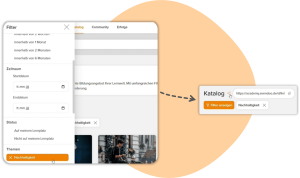
Use the search or go to the catalog. Select the desired filter settings to compile the learning units for your stream.
3
Click on Share results and copy the generated link.
Order of course releases in the stream
Use the exact search (e.g. “data protection”) to ensure that the latest course releases appear at the top of the stream.
Without quotation marks, the results are sorted by relevance – the most recent release may not be in first place.
Set up the individual stream as an author
1
Now switch to the backend as an author and add an individual stream in the client.
2
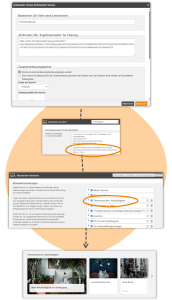
In the new window, enter an identifier (only one word without spaces, e.g. theme special).
3
Under JSON, paste the previously copied link from the front end.
4
If required, check the box next to Show summary tile, select the desired width of the tile and a background image.
5
Save the stream.
Naming of the stream
1
Switch to the Texts/Terms. tab
2
Add an entry for the naming of your stream: global.stream.[identifier]=Title of the stream (e.g. global.stream.themenspecial=Theme weeks: Sustainability)
3
To add a subtitle for the summary tile, enter the following entry: global.stream.[identifier].summarytitle=Additional text on summary tile
4
Save all changes in the client. The stream is now visible in the front end.
Prerequisite
Author account with the User management (objects): Change, create permission