

Creating a Print Template for Participants
The Print function in the Event Manager allows you to create custom print templates (e.g., for name badges). Authors can insert Avendoo variables into either a Word document or the HTML editor. These variables are automatically replaced with participant information (such as first and last name) when the template is used.
1
Navigate to Administration → Custom Pages and create a new custom page.
2
Select Print Template for Participants.
3
Enter a title and an optional teaser.
4
Switch to the Editor tab. Here you can either enter HTML/CSS directly or upload a Word document.
If both are provided, the Word document will be prioritized.
5
Click Save.
Creating an HTML Print Template
An HTML print template can be created directly in the Custom page wizard — no external tools are required. Using your HTML and CSS knowledge, you can design a layout that matches your needs. Avendoo variables are inserted into the HTML code and will automatically be replaced with participant data (e.g., first name, last name) when printed.
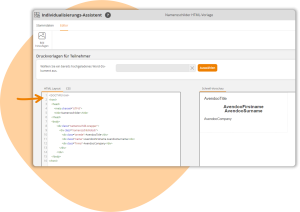
Creating a Word Document Template
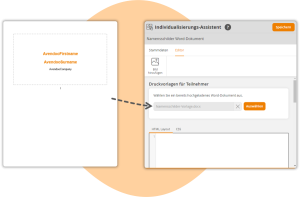
You may also use Microsoft Word to design your print template according to your specifications.
1
Design the layout for your print template.
2
Insert Avendoo variables, which will later be replaced with participant data (e.g., first name, last name).
3
Save the file in .docx format.
Example: Word Template for Name Badges.
Variables for Print Templates
You can use the same variables that are available in the “Event – Registration Confirmation Email” notification. Variables must be written in the format AvendooVariable (not in the format $Variable$) to ensure compatibility with Word.
Examples:
-
AvendooFirstname→ User’s first name -
AvendooSurname→ User’s last name
Recommendation: Do not place two variables in the same line. For variables that return multiple lines (such as session lists or addresses), this is mandatory. Variables that are not filled in the user profile will appear as blank in Word documents.
List of Variables for Print Templates
Author account with the permission: Administration (Objects): Change, Create Custom Pages.