


Assigning a Superior to a User
In Avendoo, you can link users with one superior. The superior can then be output as a filter in user management or as a column in various reports. By default, the superior has no access to the team leader cockpit; this must be enabled via further configuration. The superior can be selected as a recipient for various notifications (e.g., Certification notifications, Edit reminder).
If you would like to assign a superior to a user in Avendoo, this guide explains the necessary steps and what you need to consider.
1
Navigate to User management → Create. Or click on an existing user. The User wizard opens.
2
On the Master data → Company tab, click the Choose button under Superior.
3
The User management opens, through which you can select an existing user as a superior. Highlight the desired user and click Select. If the superior should also use the Team leader cockpit for their employees, make sure to select a user of the type User (and not of the type Author).
4
Save the User wizard.
Important Connections
Client Settings for Automatic Team Leader Configuration
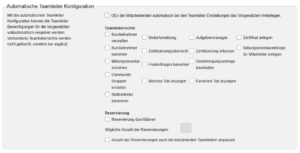
If you have activated the checkmark for Automatically save employees’ organizational entities (OEs) with superior’s team leader settings under Client → Options → Automatic team leader configuration, linking the superior to the user will upgrade the superior to a team leader and grant them the team leader permissions defined there. In addition, the user’s OU is automatically assigned to them as an additional OU for which they are the team leader. This also gives them access to all other employees with this OU via the cockpit. If the superior is linked to several users from different OUs, they will receive access to the affected OUs accordingly.
Therefore, always check whether a combination of this setting with the use of the superior field on the user makes sense for you.
Participant Rules
Every user who is entered as a superior for another user is also registered by setting the option Consider superiors only in the corresponding participant rule. The option Consider only users who are not superiors excludes the corresponding users from the participant rule.
Prerequisites
Author account with the permission User: Change, create